
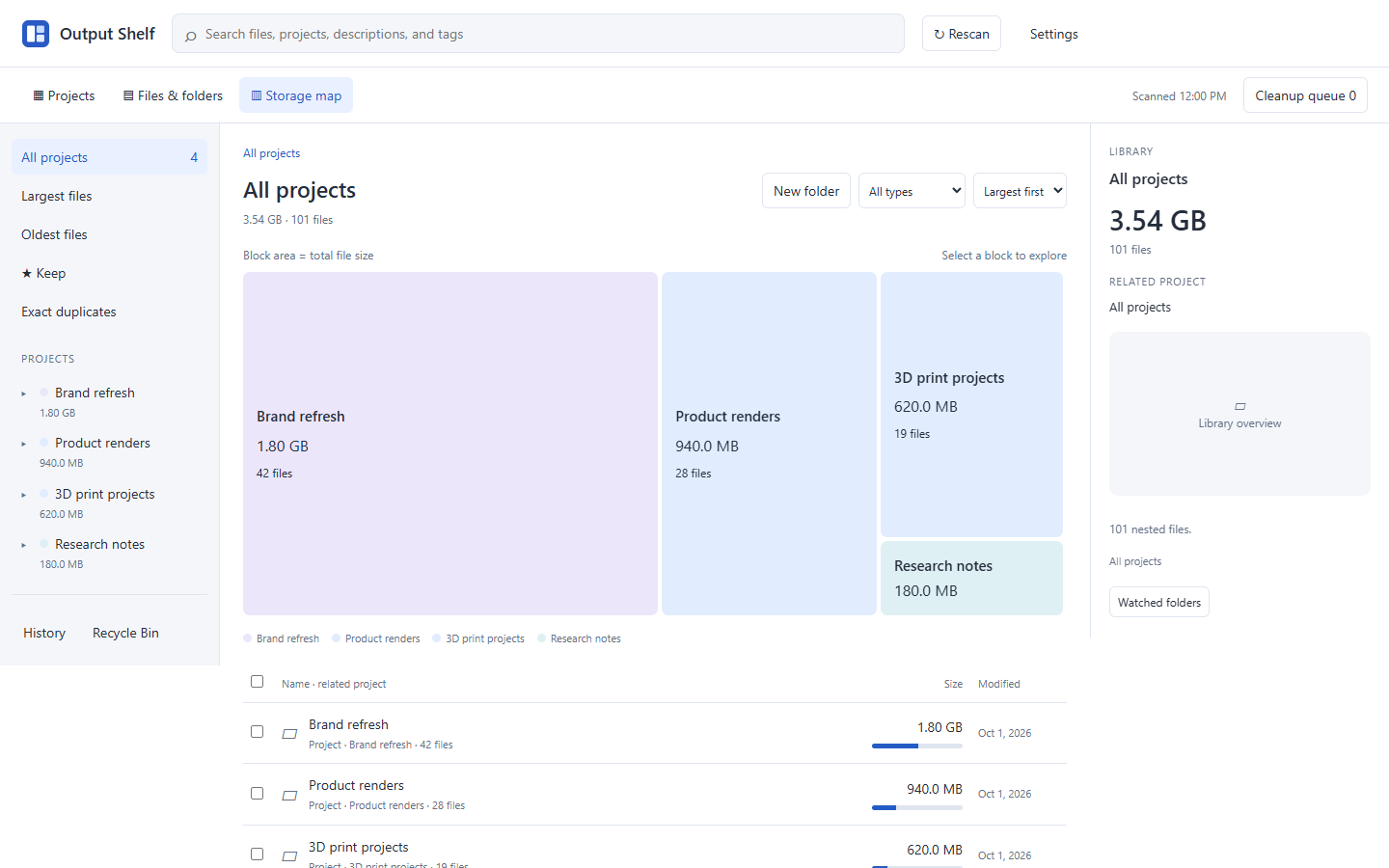
Start with the largest folder, open it, and review the individual files. Large does not mean disposable.
See storage use across projects
Open Storage map after scanning your Codex roots. The map makes large folders stand out and shows their sizes, while the related project gives you context for the work inside.
Use the map to decide where to look first. Product renders, exported videos, archives, and 3D assets can account for much more storage than notes or small documents. The app reports the file sizes it has cataloged; those figures are not a measurement of every byte Windows allocates on the disk.
Open the folder before deciding what goes
Open a large folder and inspect its file list. A large archive might contain source work you need, while a folder of unused render attempts might be ready for review. File size alone cannot make that decision.
Use Largest files when you want to compare individual files across the library. Preview supported formats, check the path and project, and mark important work with Keep before queuing anything for cleanup.
- Look for old exports that have a confirmed replacement.
- Check videos and render variants against the version you actually use.
- Open archives in the appropriate application if you need to verify their contents.
- Keep source files and deliverables that other projects still depend on.
Review the exact files in the cleanup queue
Output Shelf gives cleanup its own review step. Add selected files or folders to the queue, then read the paths and sizes before recycling. Keep prevents protected items from being included in the app’s cleanup flow.
Try that sequence in the sample library before using your own files. The demo simulates cleanup with fictional files; it cannot change anything on your computer.
- Open Storage map and identify a large project folder.
- Browse its files and preview the items you recognize.
- Mark the work you want to retain with Keep.
- Queue only the leftovers you have reviewed.
- Confirm the paths in the cleanup queue, then recycle.
Understand when disk space is actually freed
The Windows app sends reviewed cleanup items to the Windows Recycle Bin. Moving a file there does not immediately free its disk space. Windows releases that space when the item is removed from the bin.
Keep the recovery period you need and check your backups before permanently removing anything. Output Shelf helps you see and review your output library; it does not replace backups or manage the Windows Recycle Bin for you.