
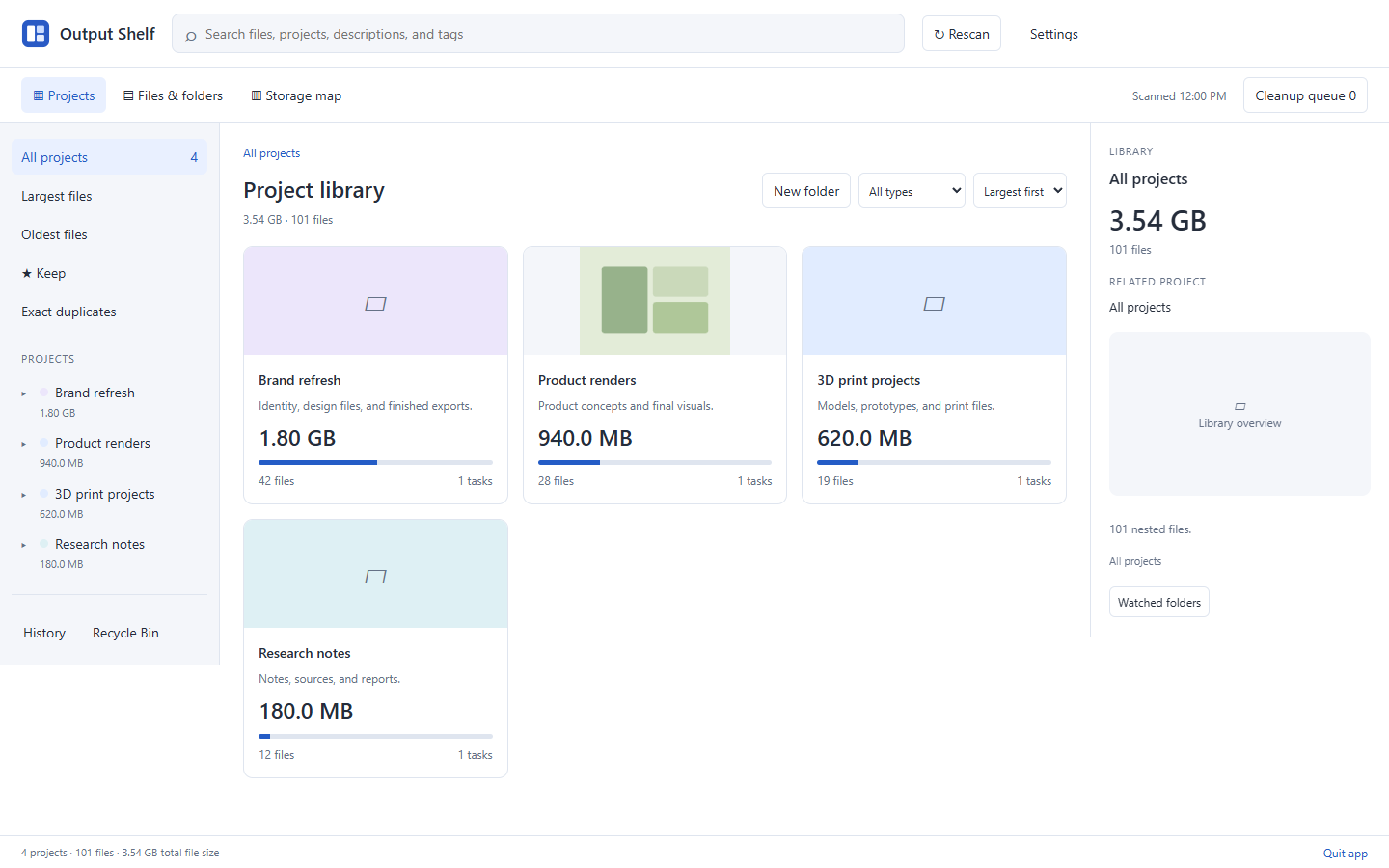
Give a project a useful name, tag the finished files, and mark the work you want to retain with Keep.
Start with the folders you actually use
Output Shelf starts with Documents/Codex and looks for output folders inside dated chat directories. If your Codex files live somewhere else, choose your Codex roots in Settings. You can also include work folders when you need to browse intermediate files.
Keep the scan focused on the places you create work. The app builds a local catalog so you can browse files across those directories without opening each chat folder in Windows File Explorer. Your files stay on your computer.
Group files by the work they belong to
A folder called outputs tells you where a file came from. A project called Website redesign tells you why it matters. Use the Projects view to group related output folders and add a name, description, and tags.
Organizing the catalog does not require moving the underlying files. That is useful when an older chat still points to the original path. If you choose to rename or move a file, its path changes; check any links or scripts that depend on it.
- Use project names you would search for later, such as Client proposal or Desk organizer.
- Add a short note about the deliverable or decision the files support.
- Use a few consistent tags, such as final, draft, source, or reference.
Check the contents before choosing a final version
Open Files & folders to see the files inside a project. Preview the document, image, text file, audio, video, or supported 3D model before deciding that a filename ending in final is the version you need.
The browser demo lets you open sample folders and select individual files. In the Windows app, previews use your local files. Some formats require another application; for example, certain vendor-specific 3MF assemblies still need their usual slicer.
Protect the useful work, then review the leftovers
Mark important files or folders with Keep before starting cleanup. Keep protects those items from the app’s cleanup flow. It is an organization tool, so maintain a separate backup of work you cannot afford to lose.
Once the library has useful project names and a few protected files, review old drafts and unused exports. Add only the items you no longer need to the cleanup queue and review their paths and sizes before recycling them.
- Scan your Codex roots.
- Name and tag related projects.
- Preview the files you plan to retain.
- Mark those files or folders with Keep.
- Review remaining items in the cleanup queue.